clarity
gallery

Every corner of it, in 78 screenshots.

Taken on Omarchy, on the machine it is built on. Click any one for full size.

01_in_omarchy

In Omarchy

The bar, the launcher and the first run. Only here.
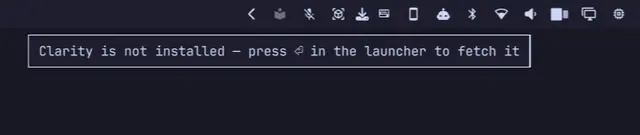
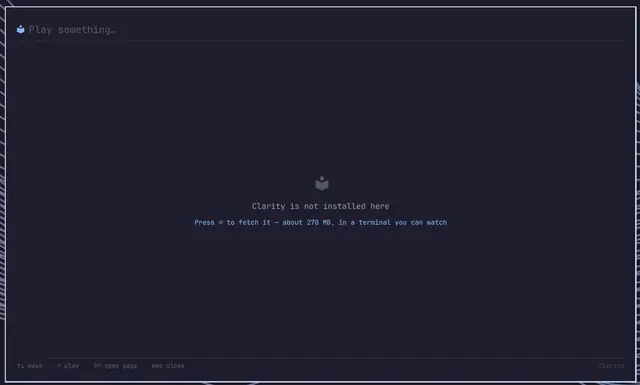
The Omarchy bar says Clarity is not installed yet, and how to fetch it.
The bar, before Clarity is installed, offering to fetch it.
The launcher overlay before anything is installed.
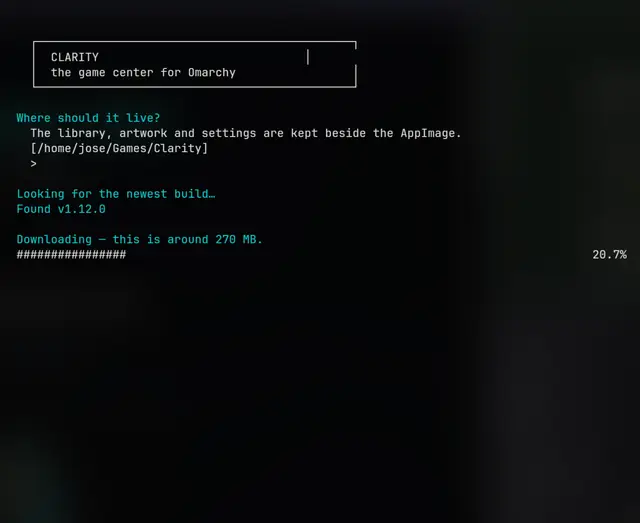
The first install, running in a terminal you can actually watch.
The first install, in a terminal you can watch.
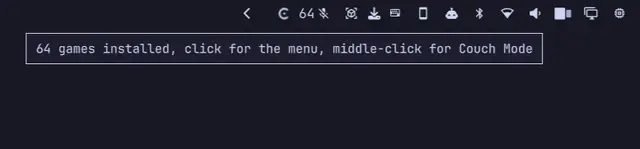
The bar widget: how many games are installed, and what a click does.
The bar widget: how many games are installed.
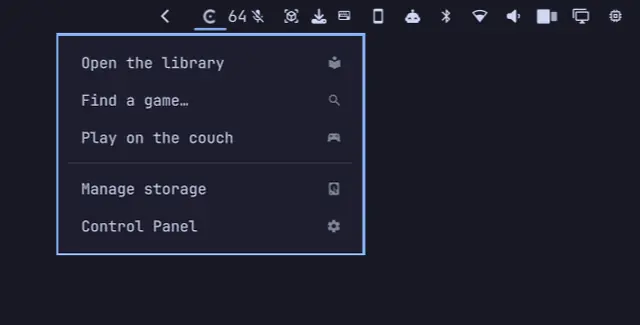
The bar menu. Everything the app does, one click from the bar.
The bar menu, one click from everything.
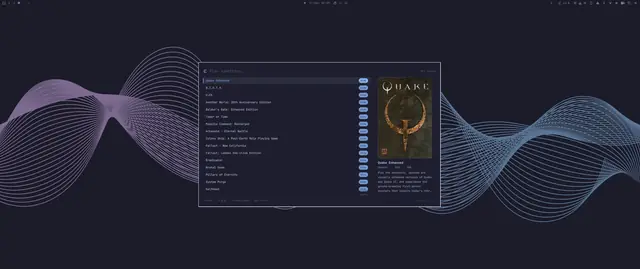
The launcher overlay open over the desktop, one keyboard shortcut away.
The launcher overlay, one shortcut away.
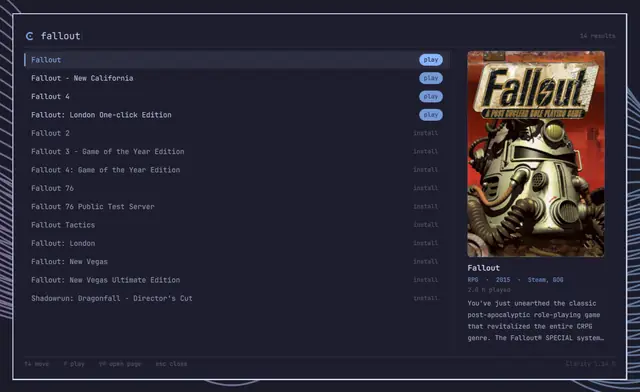
Searching the launcher, installed games first and the rest below.
Searching: installed games first, the rest below.
02_the_library

The library

Everything you own in one grid.
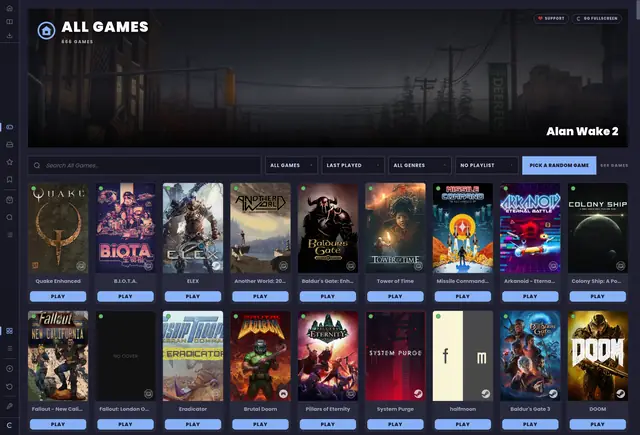
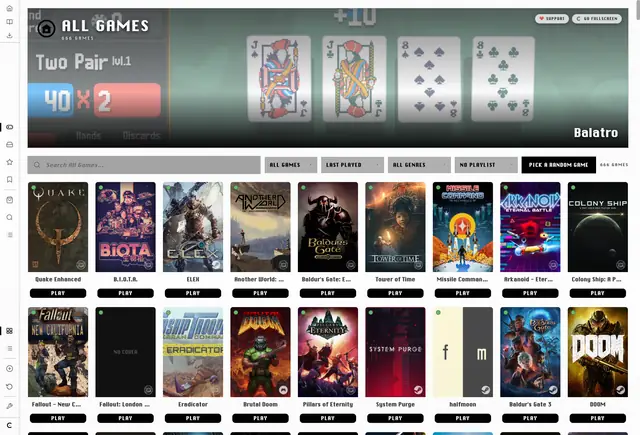
The library grid: every game you own, with a button under each one.
The library grid, a button under each game.
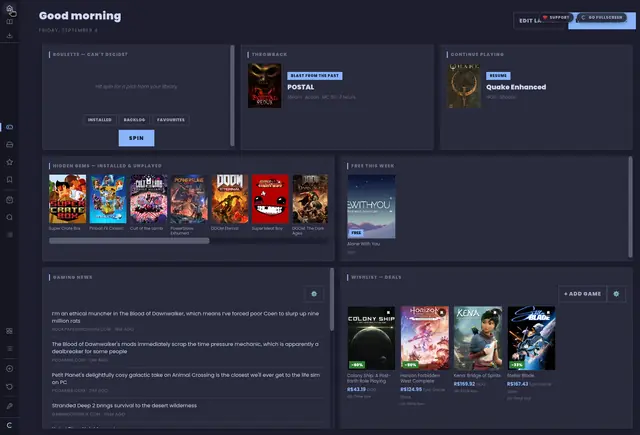
The home dashboard: what to play, what is new, what is on sale.
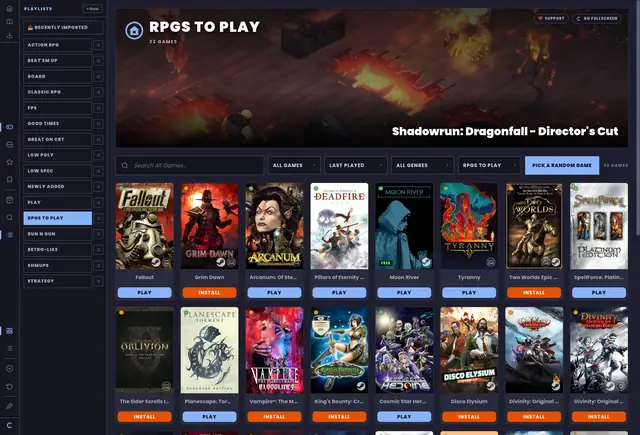
A playlist. Your own shelves, however you like to sort them.
A playlist. Your own shelves.
03_a_game_page

A game page

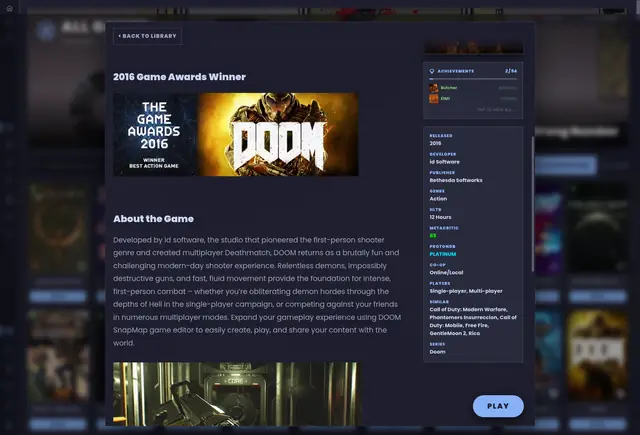
Artwork, metadata, achievements, and one button that matters.
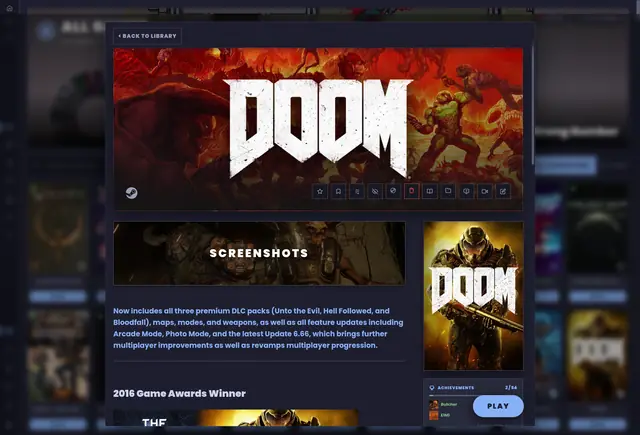
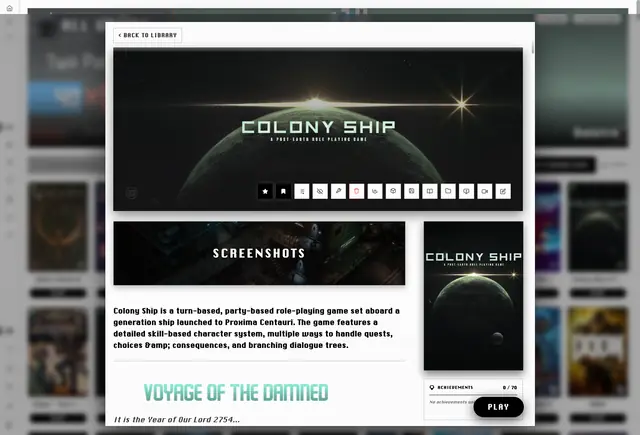
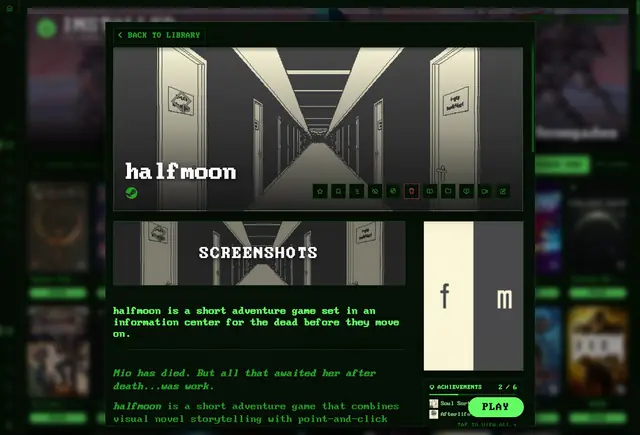
A game page: key art, screenshots, description, and one play button.
A game page: key art, screenshots, description, play.
The same page further down, with the metadata it scraped for you.
Further down, the metadata it scraped.
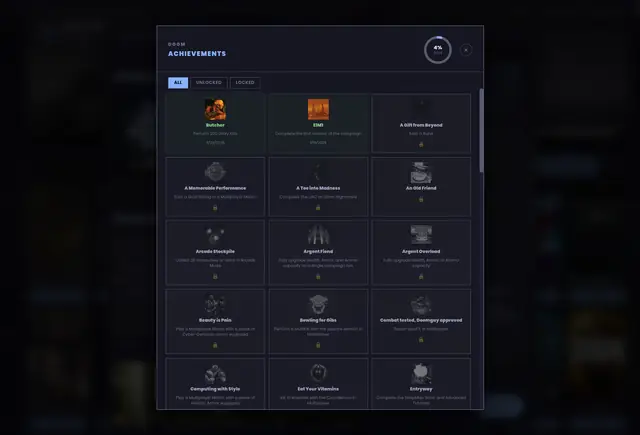
Achievements, read straight from the game.
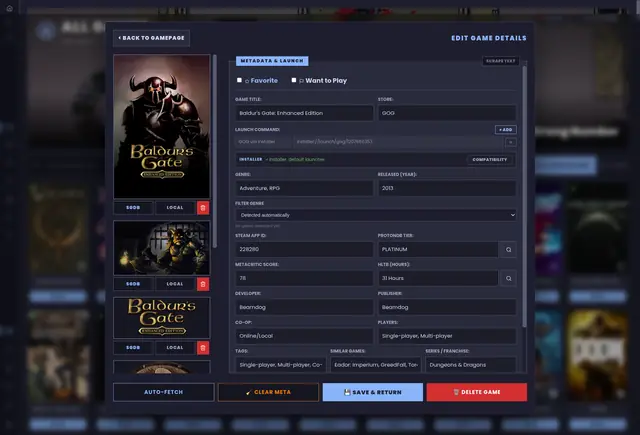
Edit details. The launch command field is the one that changes everything.
Edit details. The launch command field does the heavy lifting.
04_installing

Installing and storage

Where games live, and how to move them.
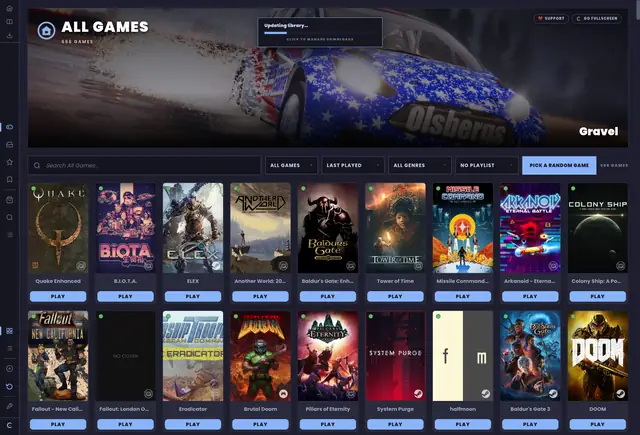
The library updating itself in the background.
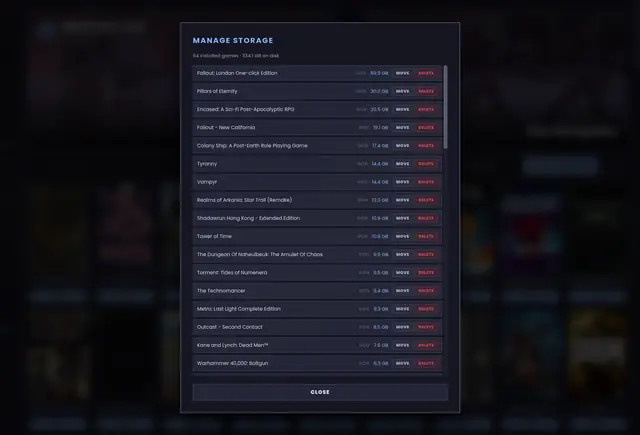
Manage storage: every installed game and what it costs you in disk.
Manage storage: every install and what it costs in disk.
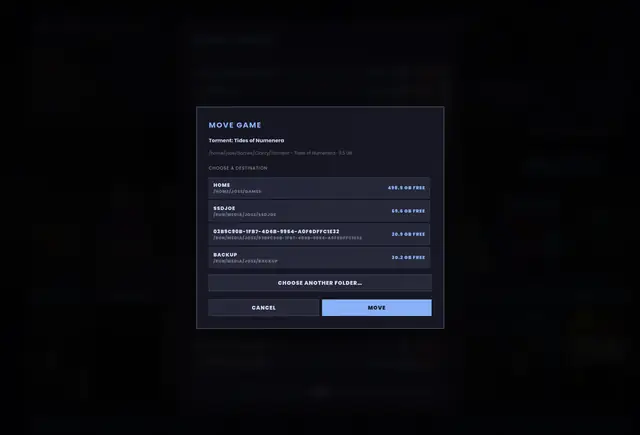
Moving a game to another drive, the way it always should have worked.
Moving a game to another drive.
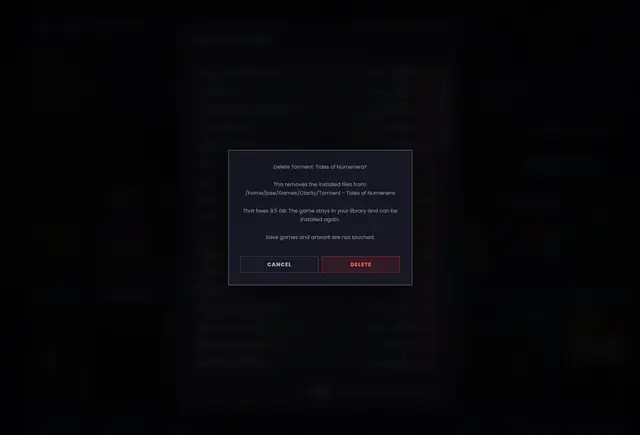
Deleting an install. The game stays in your library, saves are untouched.
Deleting an install. The game stays, saves untouched.
05_fan_games_and_source_ports

Fan games and source ports

You download the port. Clarity does the rest.
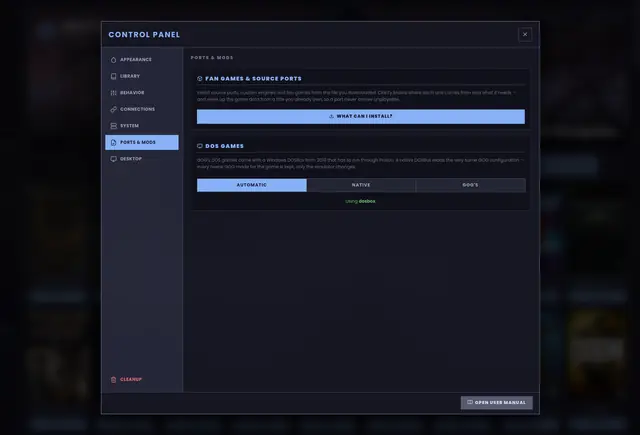
Ports and mods, sitting in the Control Panel with everything else.
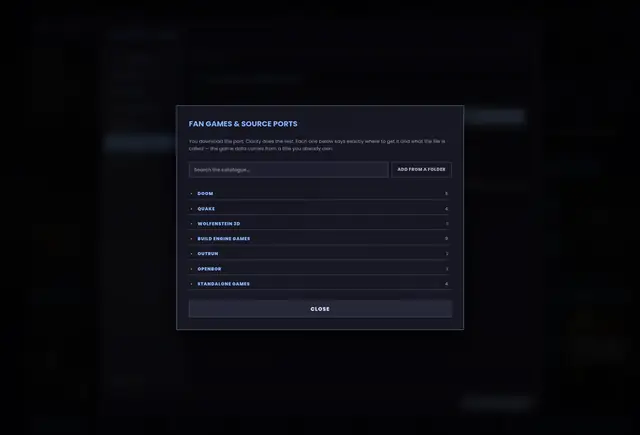
Ports and mods in the Control Panel.
The source ports catalogue, grouped by the game it needs.
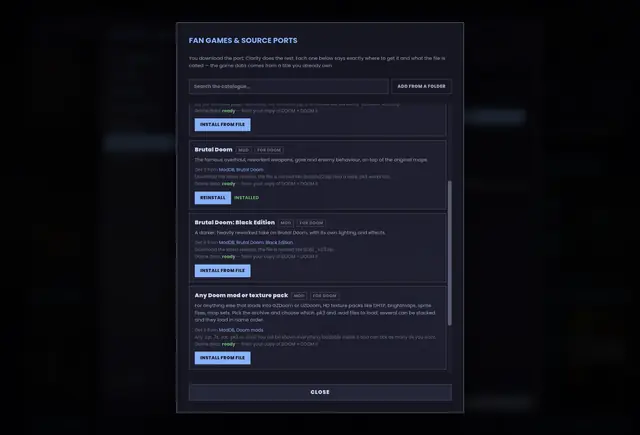
Brutal Doom and friends, each one telling you exactly what file it wants.
Brutal Doom and friends, each naming the file it wants.
06_carts_and_emulators

Carts and emulators

Carts and ROMs, in the same library as everything else.
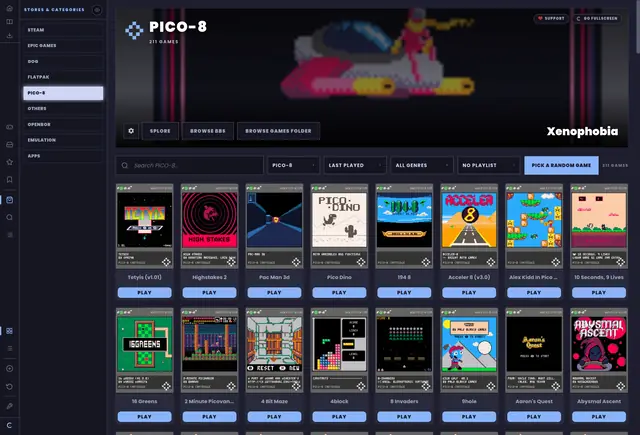
PICO-8 carts in the same library as everything else.
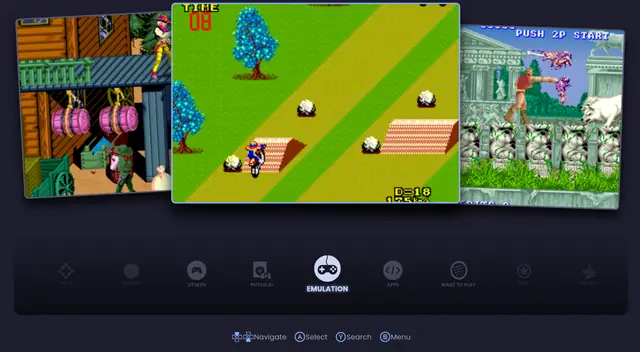
PICO-8 carts on the same shelf.
Emulation on the couch, browsed like any other shelf.
07_artwork_trailers_manuals_saves

Artwork, trailers, manuals, saves

Fetched once, kept on your disk, yours to back up.
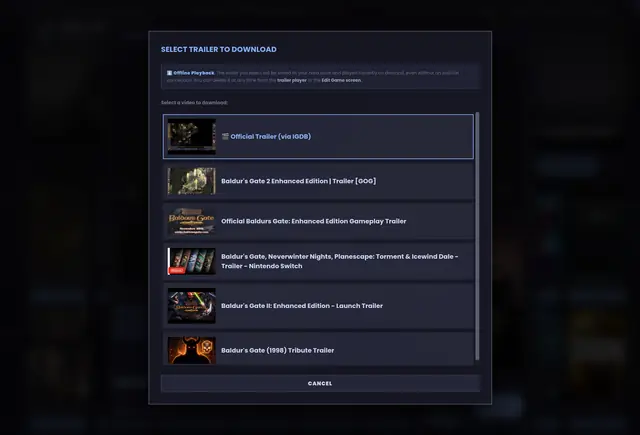
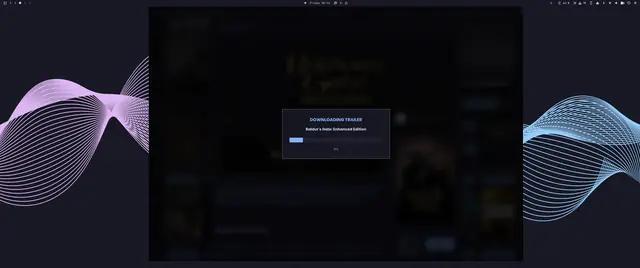
Picking a trailer to keep on your own disk.
The trailer downloading.
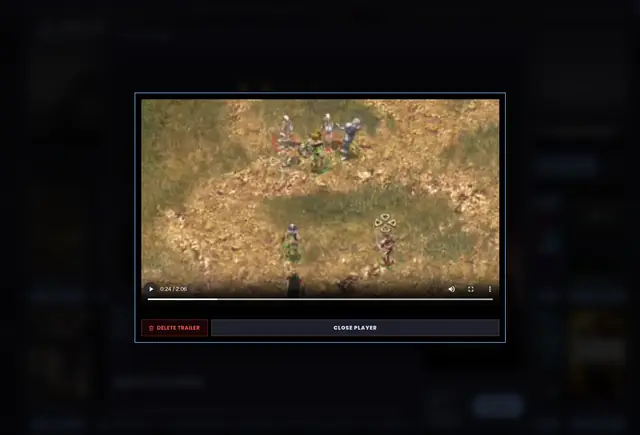
Playing it back later, with no connection needed.
Playing it back later, no connection needed.
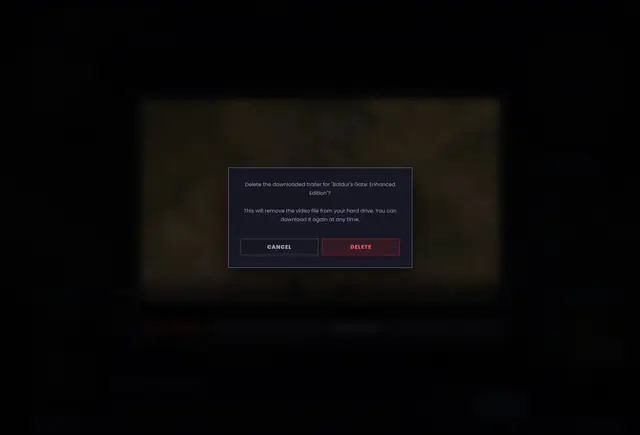
Removing a trailer you no longer want on disk.
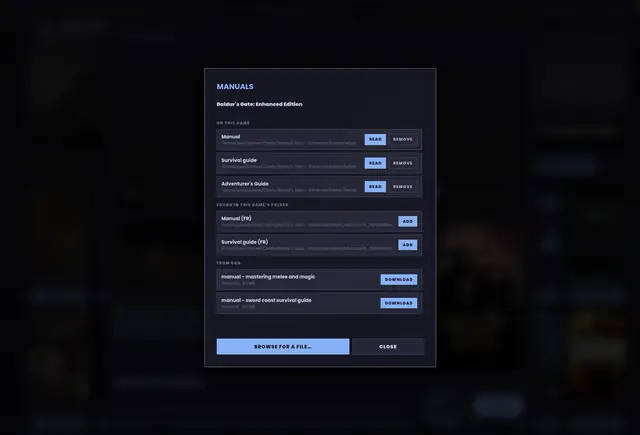
The manuals a GOG game shipped with, ready to read or download.
The manuals a GOG game shipped with.
Reading one of them without leaving the app.
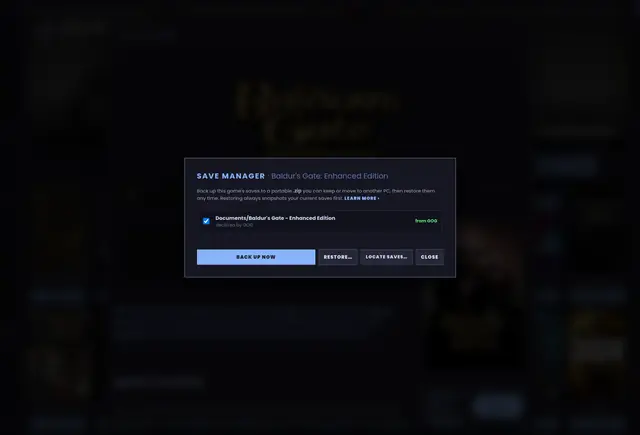
The save manager: back the whole thing up to a zip you can carry.
The save manager: the whole thing to a zip.
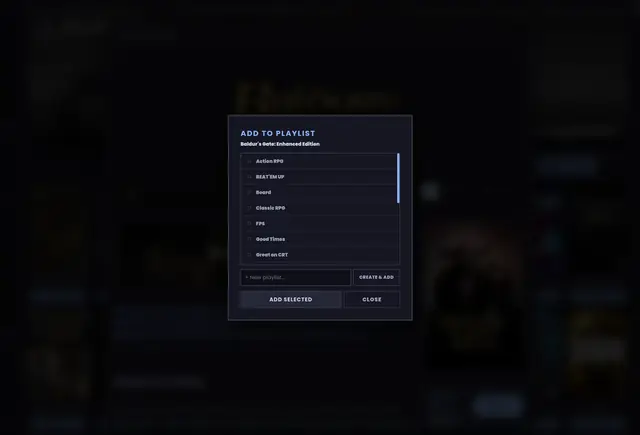
Adding a game to a playlist.
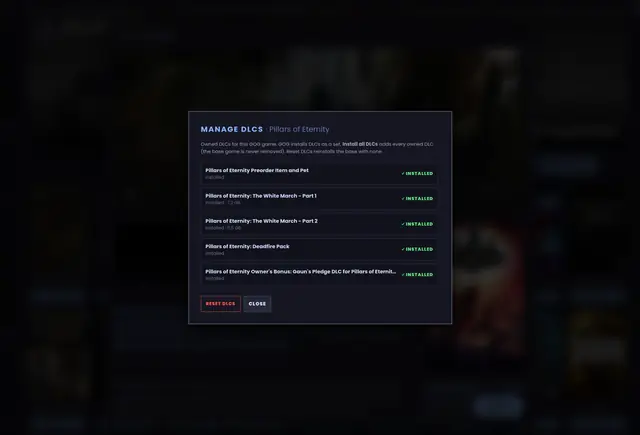
Managing the DLC a GOG game came with.
08_themes

93 themes

The whole app changes clothes, and can follow your desktop.
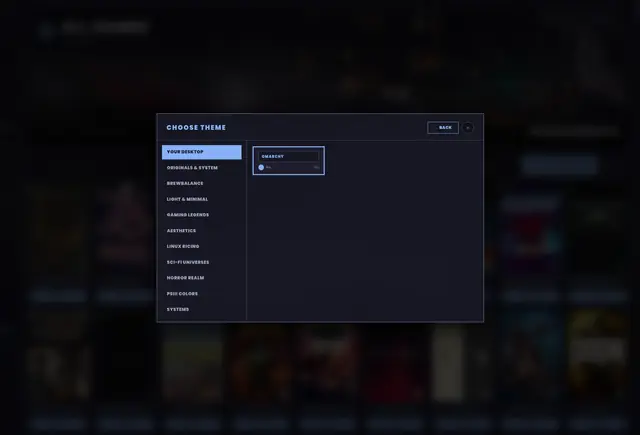
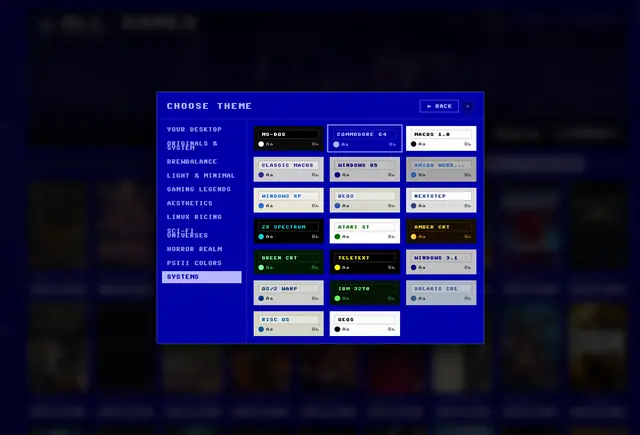
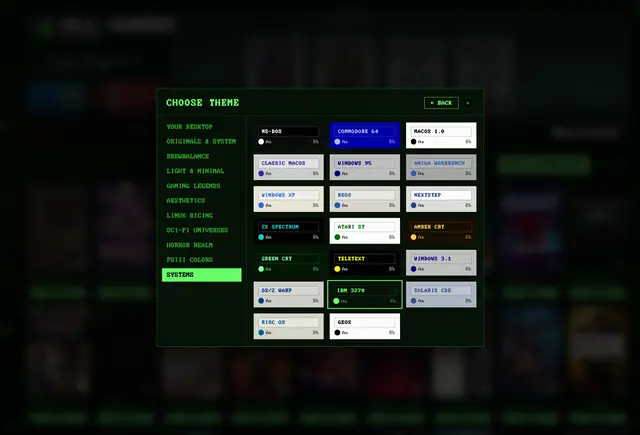
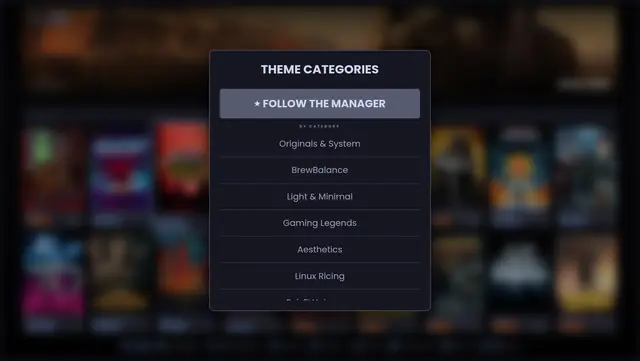
The theme picker, with Your Desktop at the top holding your Omarchy colours.
The theme picker, Your Desktop at the top.
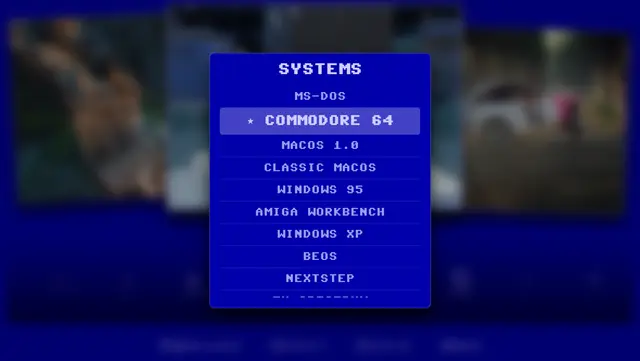
The Systems category, where the old machines live.
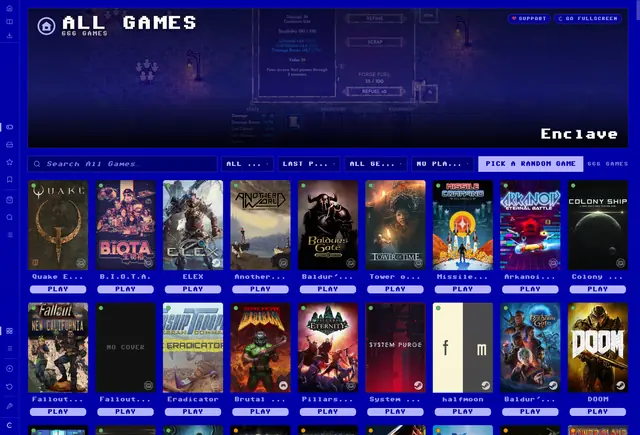
The library wearing Commodore 64.
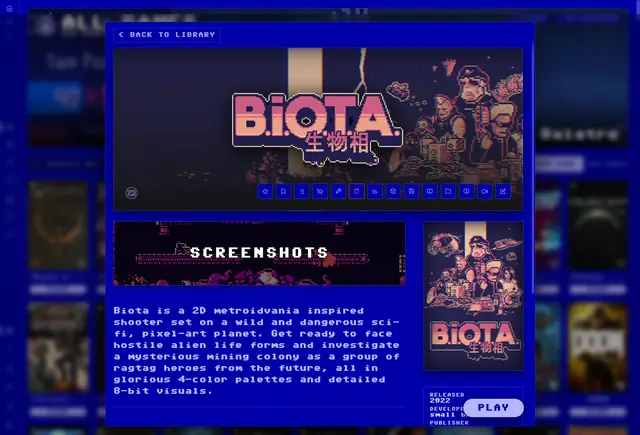
A game page in the same Commodore 64 palette.
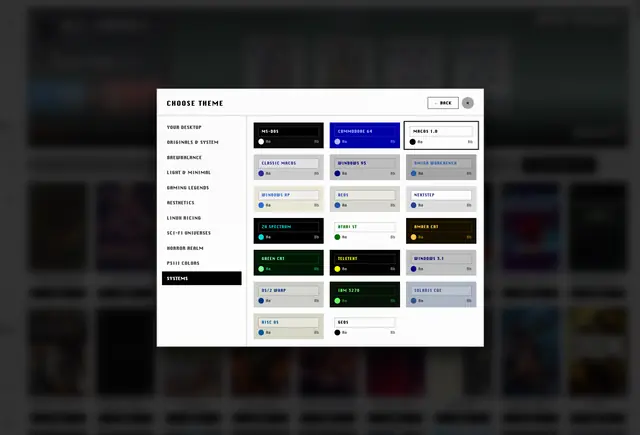
Picking MacOS 1.0.
Picking MacOS 1.0.
The library in MacOS 1.0, black on white and all.
A game page to match.
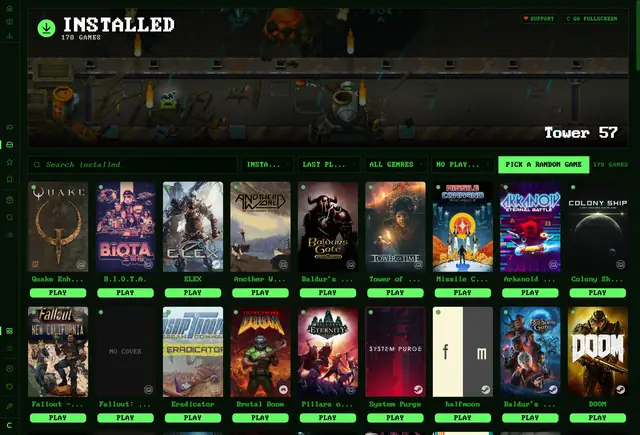
Picking IBM 3270, the green CRT.
The library in green phosphor.
And a game page, still perfectly readable.
Couch Mode has the same theme system, on the controller.
The same theme system, on the controller.
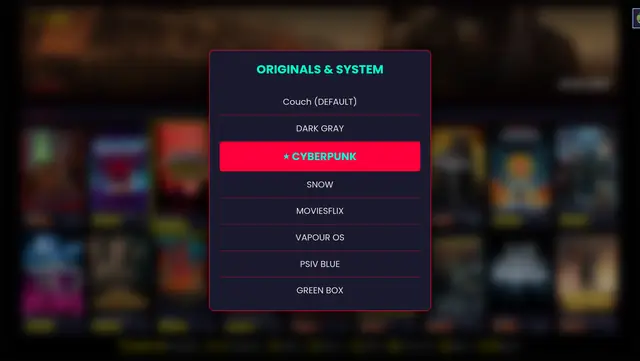
Cyberpunk on the big screen.
Commodore 64 on the big screen.
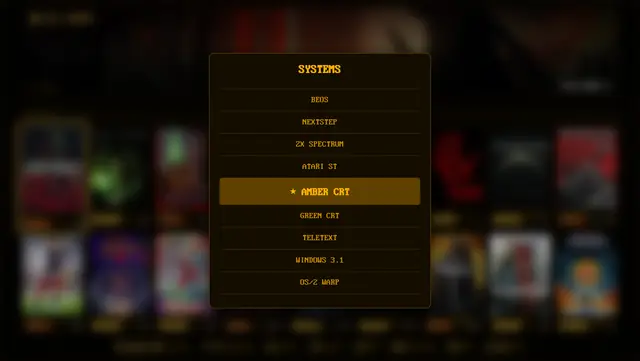
Amber CRT on the big screen.
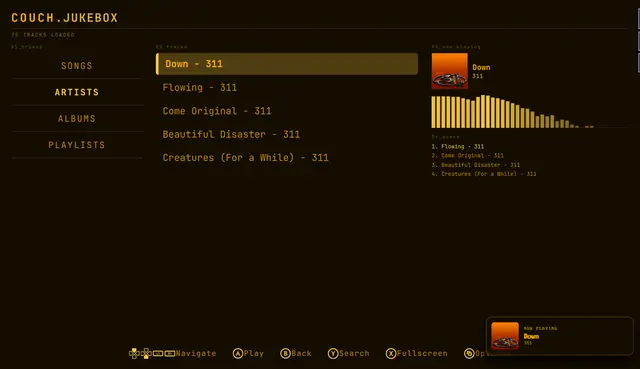
Even the jukebox follows the theme.
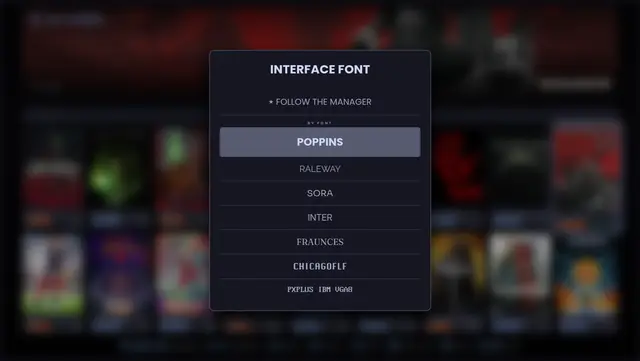
And the interface font is yours to pick too.
09_settings

Settings

The knobs, and the manual for every one.
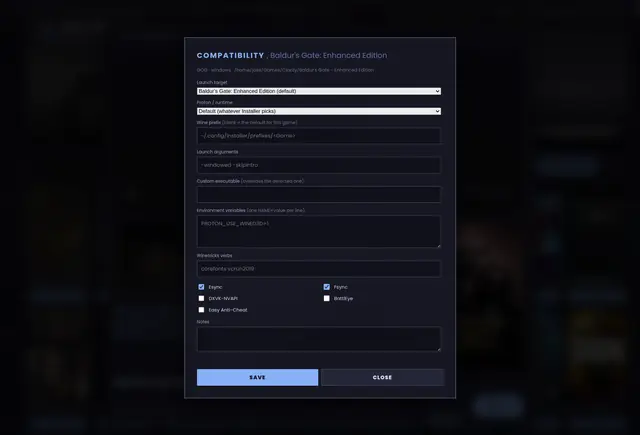
Per game compatibility: Proton, prefixes, launch arguments, the lot.
Per game: Proton, prefixes, launch arguments.
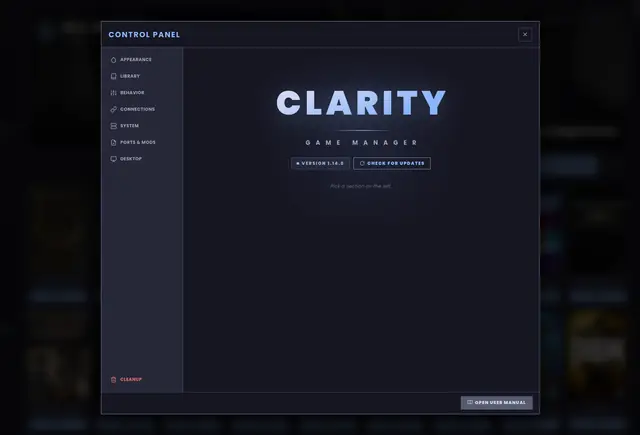
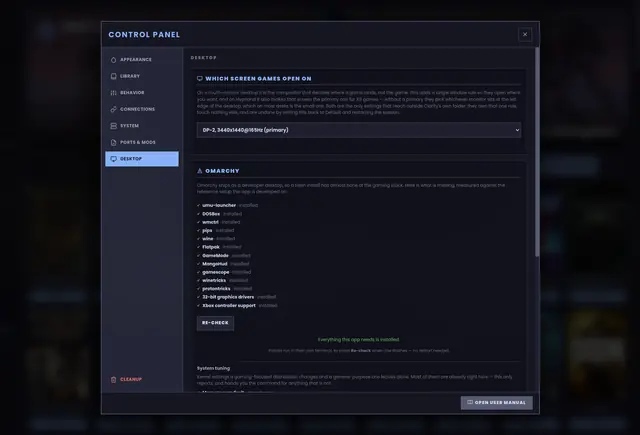
The Control Panel.
The Control Panel.
The Omarchy section: what is installed, what is missing, and the command to fix it.
The Omarchy section: what is installed, what is missing, the command to fix it.
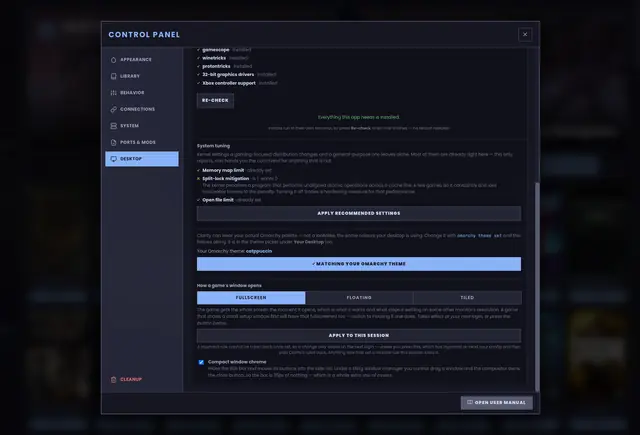
Matching your Omarchy theme, and choosing how a game's window opens.
Matching your Omarchy theme, and how a game's window opens.
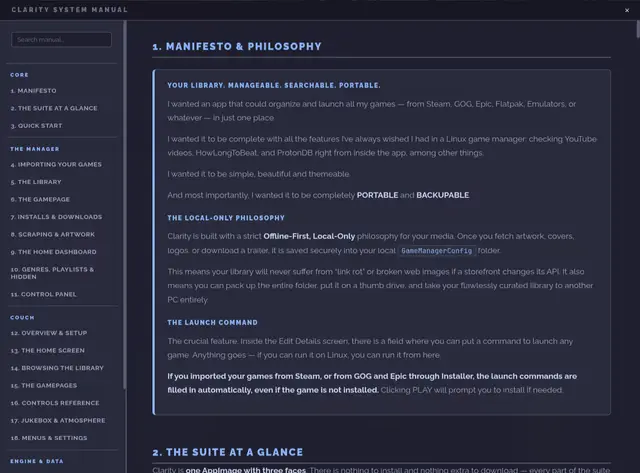
The manual, built into the app.
10_couch

Couch Mode, on the big screen

Same library, ten feet away, on a controller.

Couch Mode starting up.
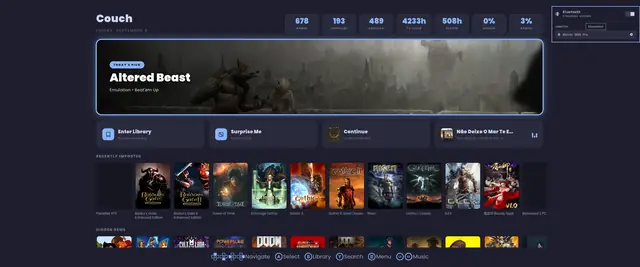
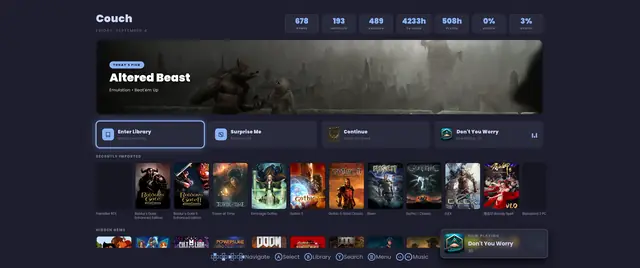
The Couch home screen: your numbers, today's pick, and what you just imported.
The Couch home screen: your numbers, today's pick, what you just imported.
Home, with something playing in the corner.
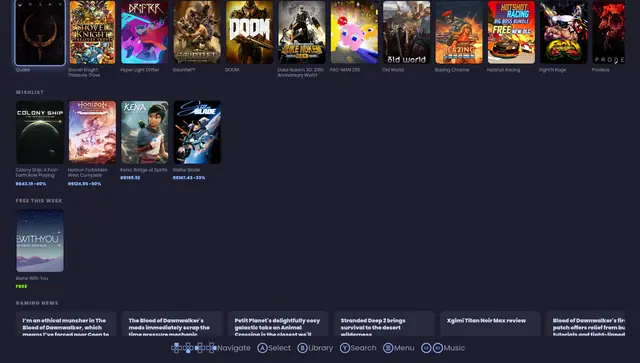
Further down: the wishlist, the deals and the news.
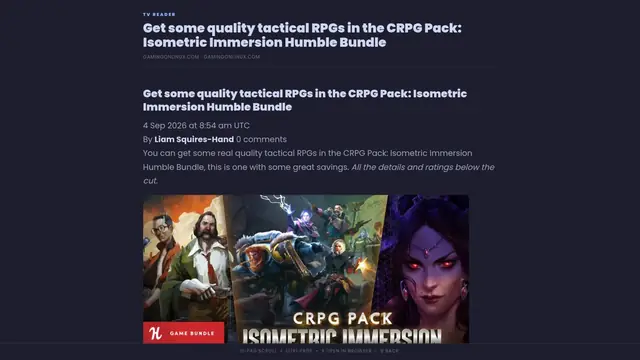
Reading the news on the TV, without reaching for a laptop.
Reading the news on the TV.
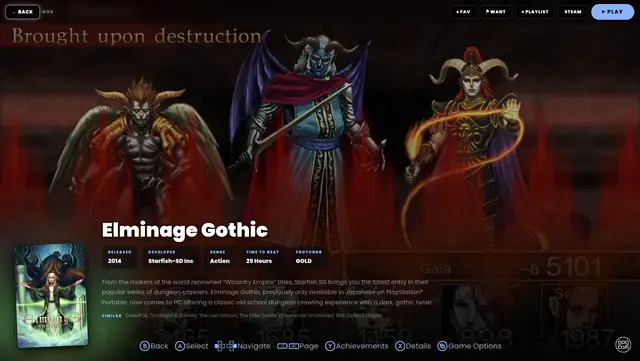
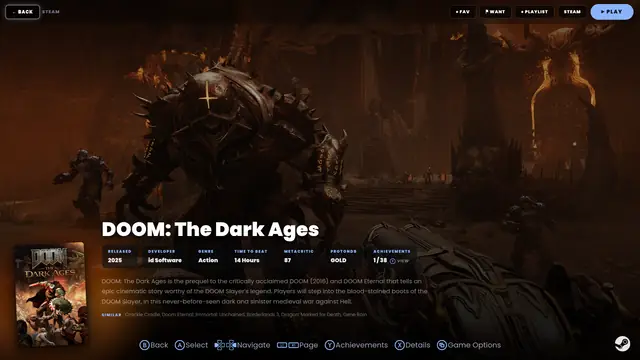
A Couch game page, key art filling the screen.
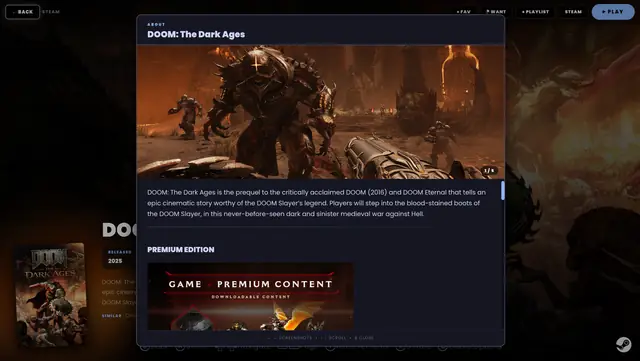
The description and screenshots, one button away.
Another one, because DOOM deserves the whole screen.
Its description, on the couch.
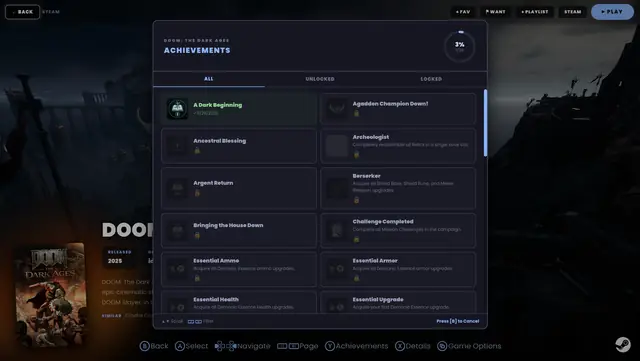
Achievements, on the couch.
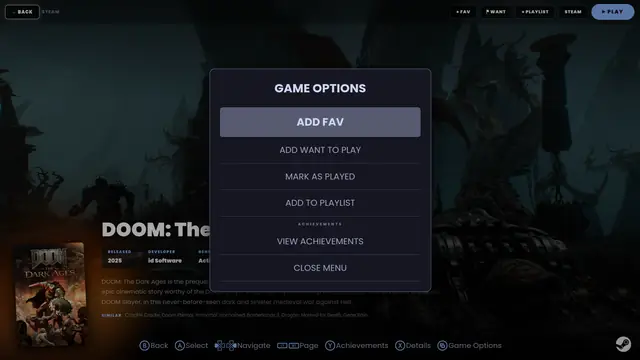
Game options, without a mouse anywhere near it.
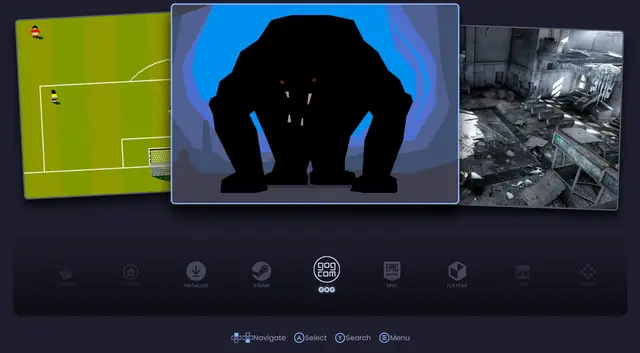
Browsing by store, in a card flow you steer with a stick.
Browsing by store, steered with a stick.
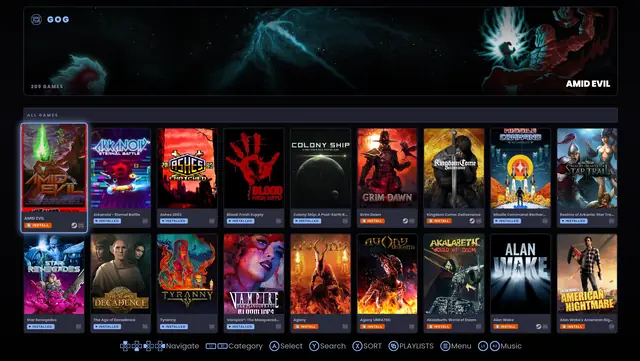
The same shelf as a grid of covers.
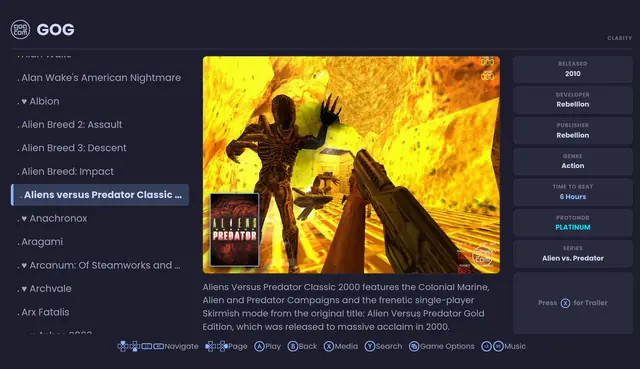
Or as a list, when you know what you are after.
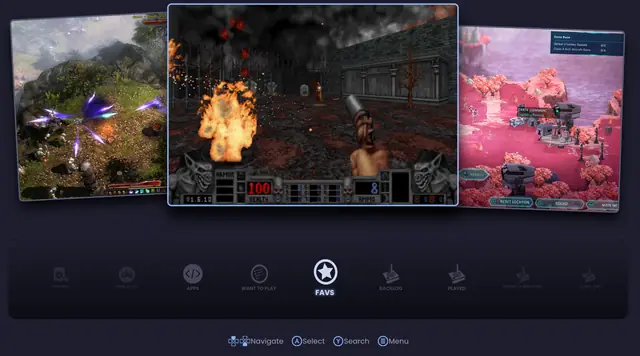
Favourites, one shelf along.
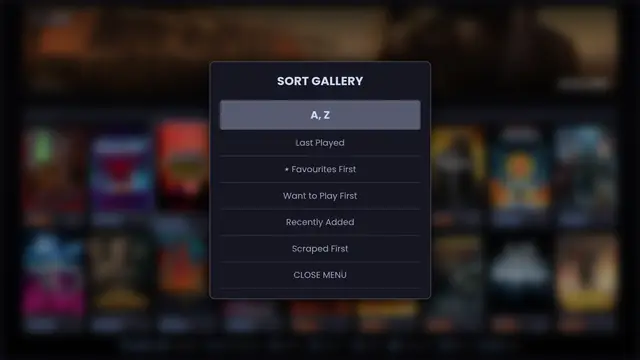
Sorting the shelf.
Sorting the shelf.
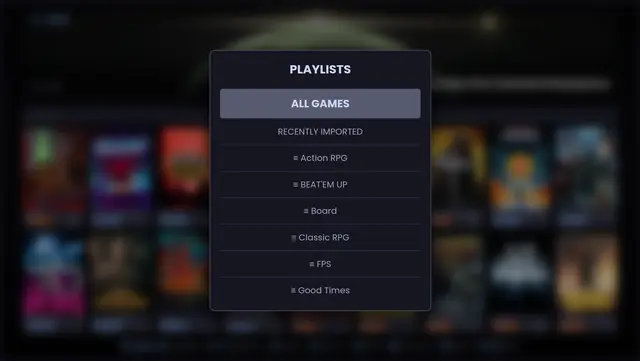
Your playlists, on the big screen.
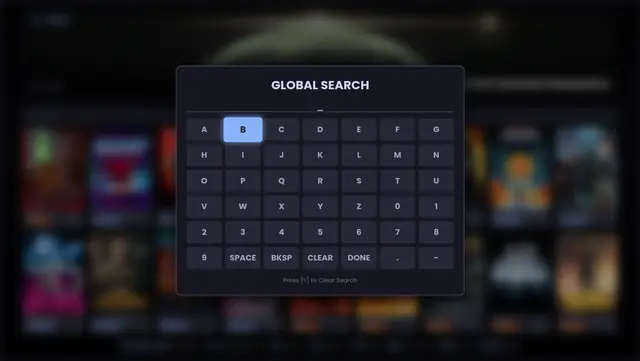
Searching with a controller, which is less painful than it sounds.
Searching with a controller.
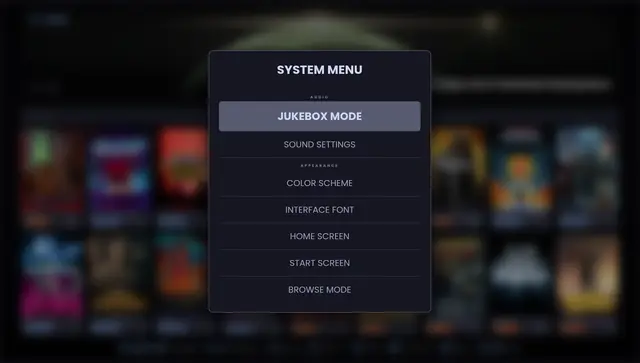
The system menu.
The system menu.
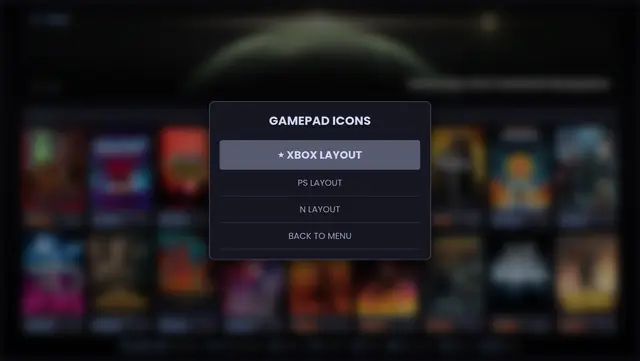
Pick your gamepad's button icons: Xbox, PlayStation or Nintendo.
Button icons: Xbox, PlayStation or Nintendo.
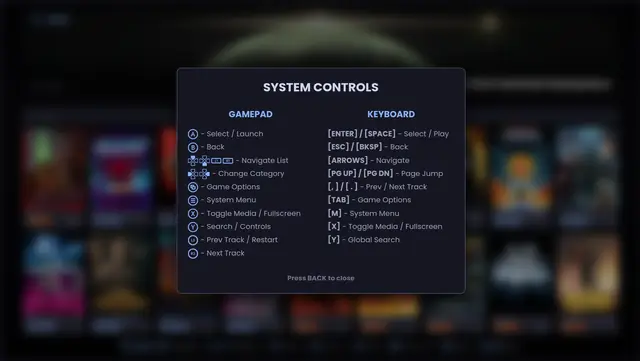
Every control, listed for pad and keyboard.
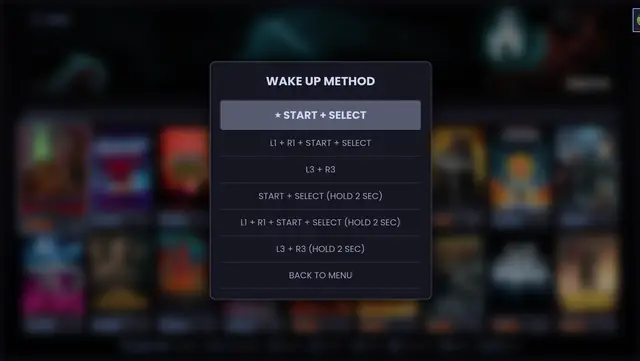
How to wake it up from the sofa.
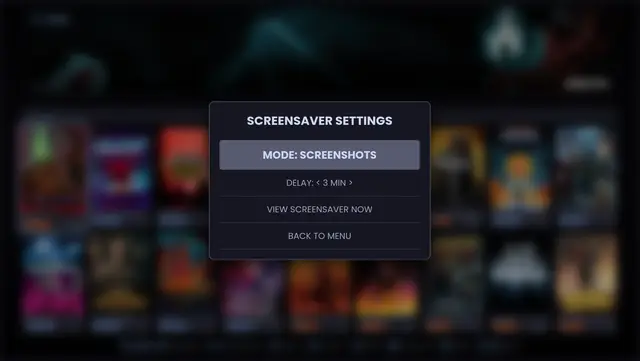
The screensaver, built from your own screenshots.
11_now_playing

Now playing

There is a jukebox in here, because of course there is.
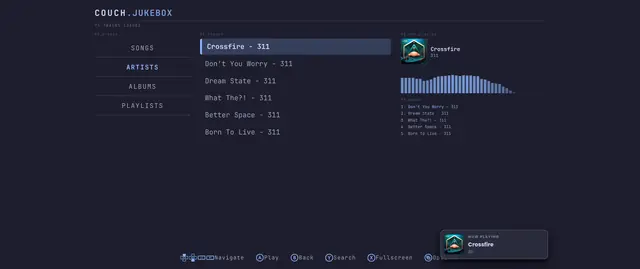
The jukebox: your music, browsed like the library.
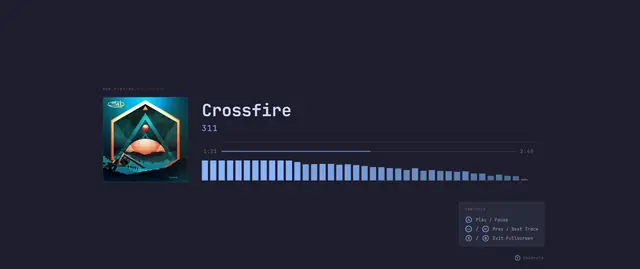
Now playing, full screen, with the controls that drive it.
Now playing, full screen.
< back to clarity